

Link mode lets you skip the manual summarizing. Paste any public URL and AI Assistant reads the page and writes post copy from it — no copy-pasting excerpts required.
How to Use It
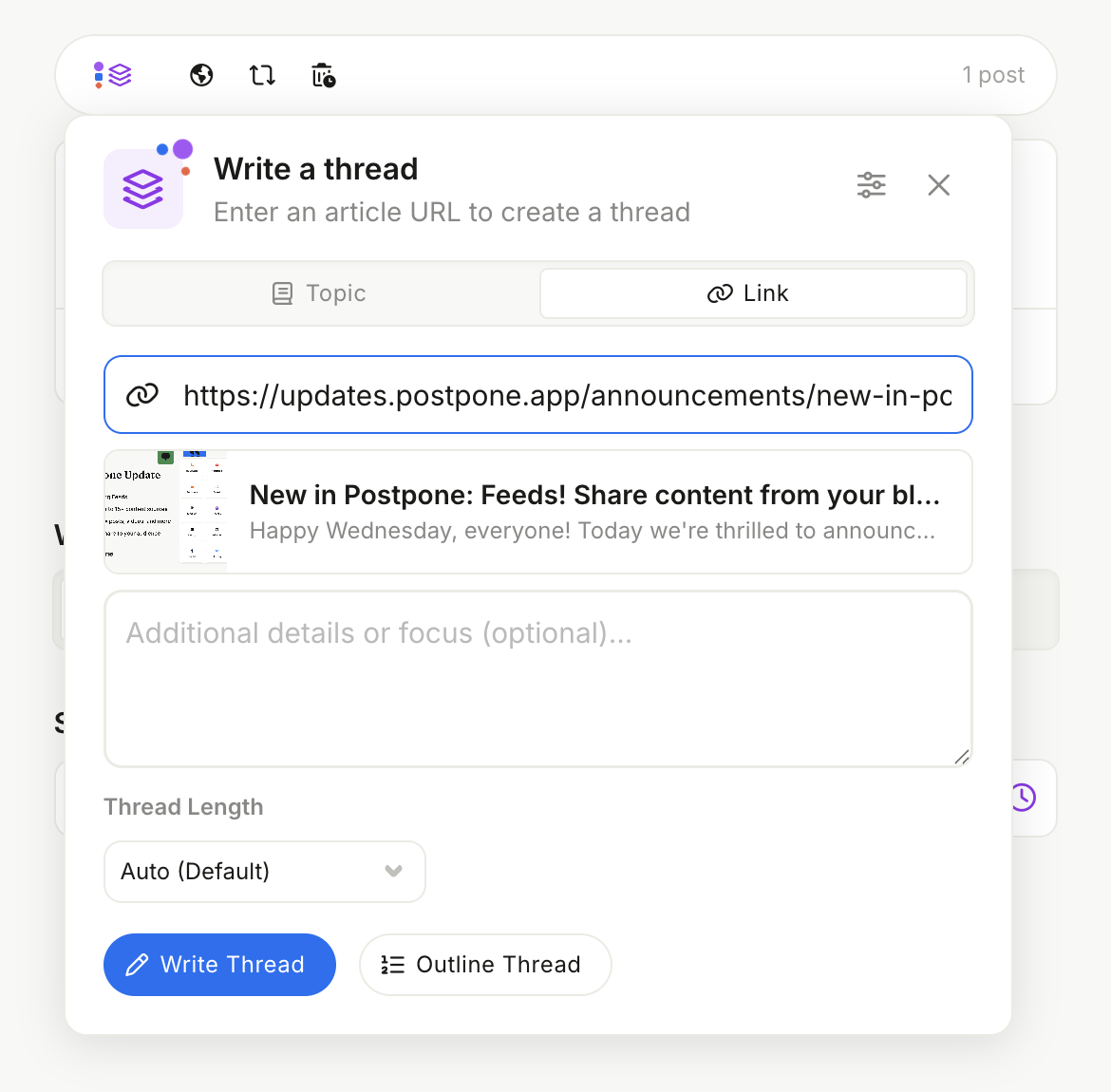
- Open AI Assistant in any post editor.
- Select Link at the top of the panel.
- Paste a public article, blog post, or web page URL.
- Optionally add context in the field below — an angle to focus on, the target audience, or a tone preference.
- Click Create (or Write Thread in thread mode).
What to Use It For
Single posts — great for promotional posts, link shares, or quick takes on something you've read. AI generates a post that captures the gist without you writing a word.
Threads — this is where link mode really shines. Switch to thread mode before clicking Write Thread and AI will turn the full article into a structured multi-post breakdown. Ideal for repurposing long-form content, sharing research findings, or giving your audience the highlights instead of just a link.
Adding Context
The URL alone is enough to get a draft, but adding a note in the optional details field gives you much more useful output. For example:
"Focus on the section about remote hiring — audience is startup founders"
"Summarize the key stats, keep it punchy, no more than 3 posts"
"Write this as a thread that builds to the main conclusion"
Tips
- Paywalled or login-gated pages won't work. AI can only read publicly accessible content.
- Verify claims before publishing. AI may misread or misrepresent details from complex articles — always check facts, figures, and quotes.
- Steer the angle with context. Long articles cover a lot of ground; tell AI which part matters most for your audience.