Postpone supports editing images while scheduling posts or from the Content Library. The platform offers 8 basic edits for images:
- Crop
- Rotate
- Enhance
- Mirror
- Flip
- Grayscale
- Invert colors
- Blur
Editing While Scheduling a Post
- Click New Post and select an account.
- Upload an image or choose an existing image from your Content Library.
- Select editing options below the image.
Editing From the Content Library
- Navigate to the Content Library.
- Find the image you would like to edit.
- Click the image thumbnail, or select Actions > Edit image.
- Choose an editing option.
- Click Save.
Adding Watermarks to Images
Watermarks are text overlays that can display usernames, handles, or URLs. Customizable options include text, color, opacity, size, and placement.
To add a watermark: select the Watermark tab while editing an image, fill in the form, then click Save.
Applying Filters to Images
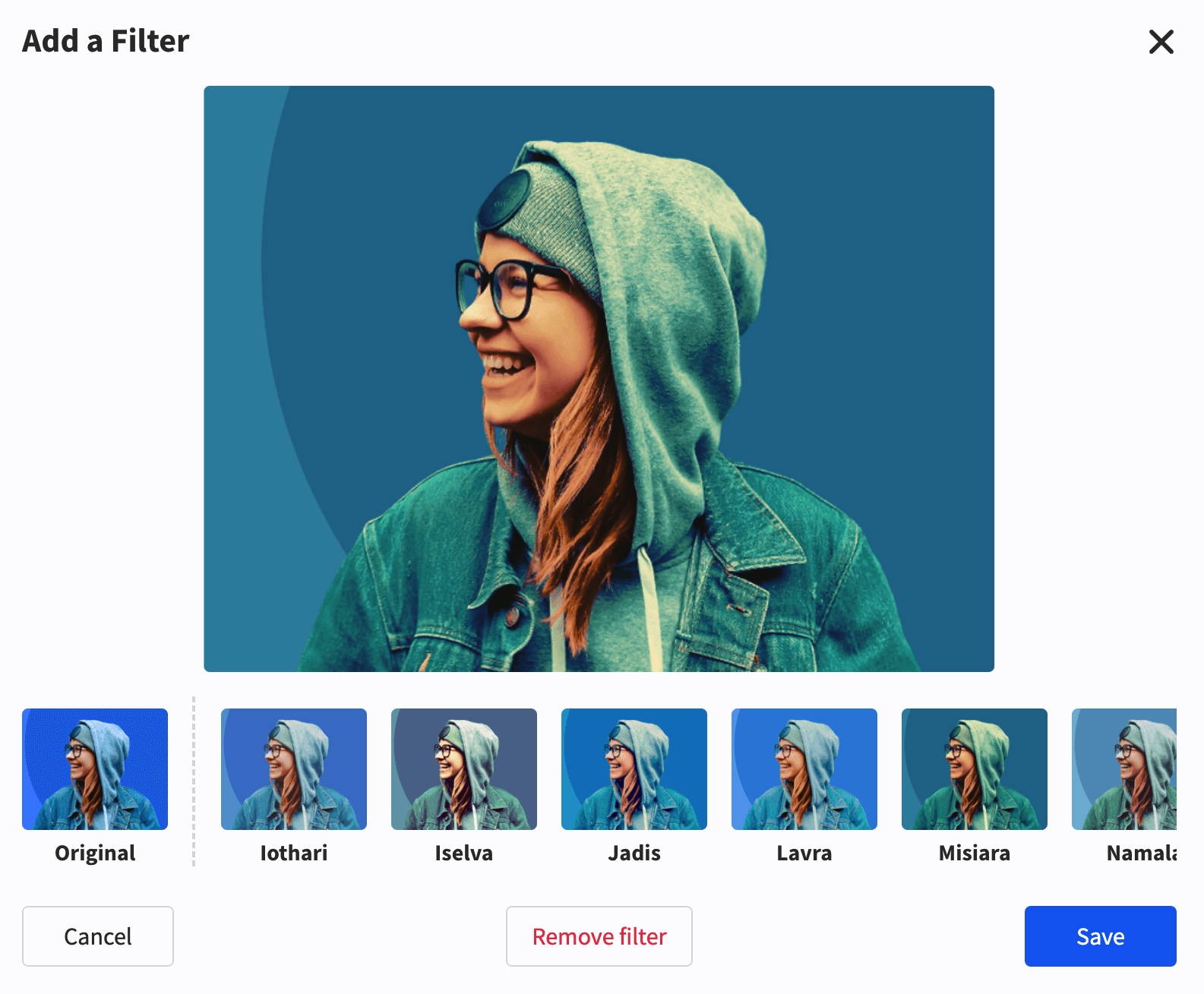
Postpone provides 40 distinct image filters for adjusting appearance.
To apply a filter: select the Filters tab, select a filter, then click Save.