

Postpone works with all Bluesky accounts, including those on a self-hosted PDS. Follow the steps below to connect your Bluesky account to Postpone.
Generate an App Password in Bluesky
- Go to Settings > Privacy and Security > App passwords in Bluesky.
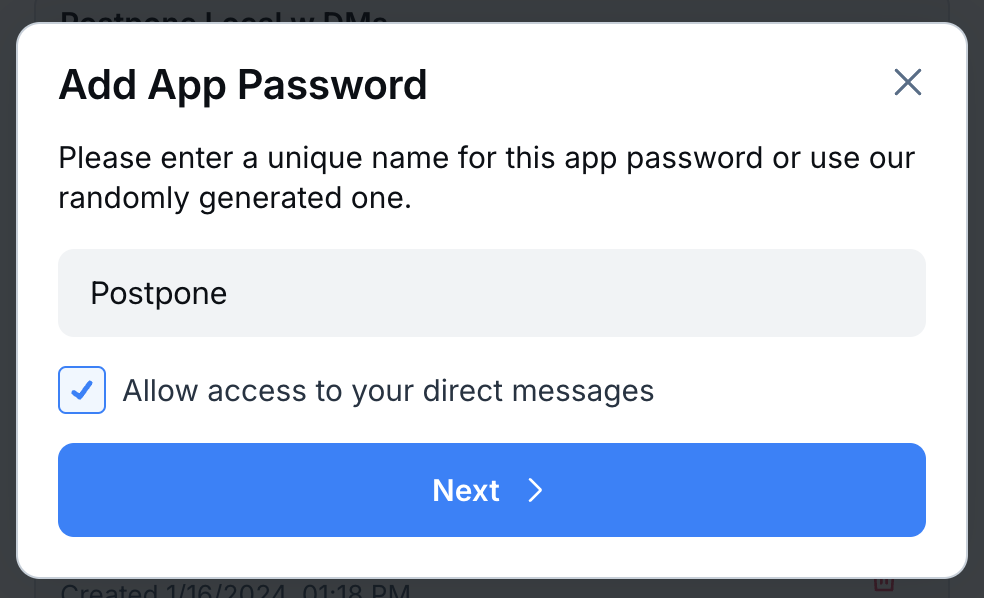
- Click Add App Password.
- Give your App Password a name (e.g., "Postpone").
- Check the "Allow access to your direct messages" checkbox if you'd like to access your Bluesky DMs in Postpone's Conversations inbox. This is optional.
- Click Next.
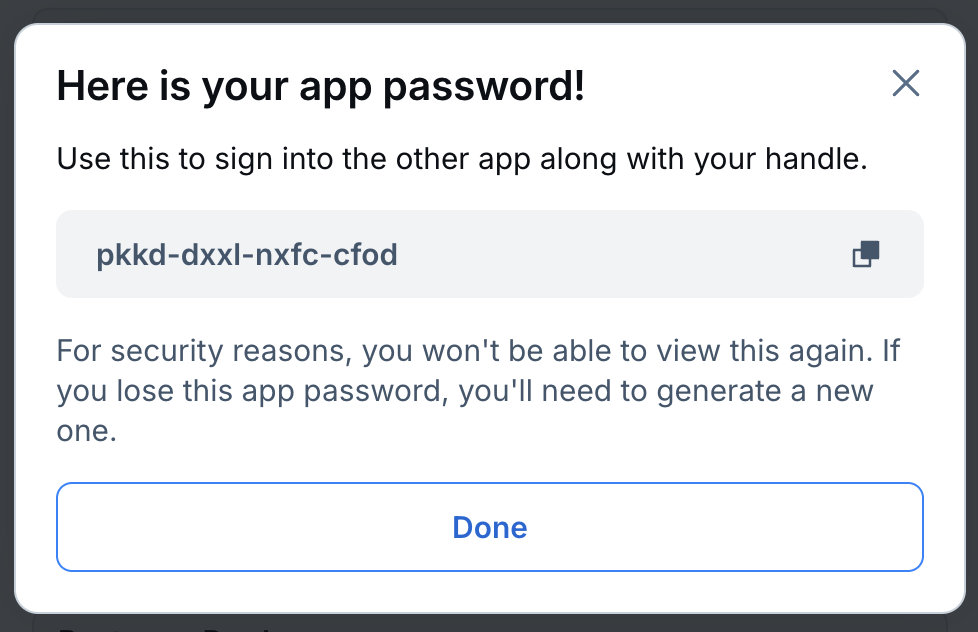
- Copy the generated App Password.
Connect your Bluesky Account to Postpone
- Navigate to Settings > Social Accounts > Bluesky in Postpone.
- Click Connect a Bluesky Account.
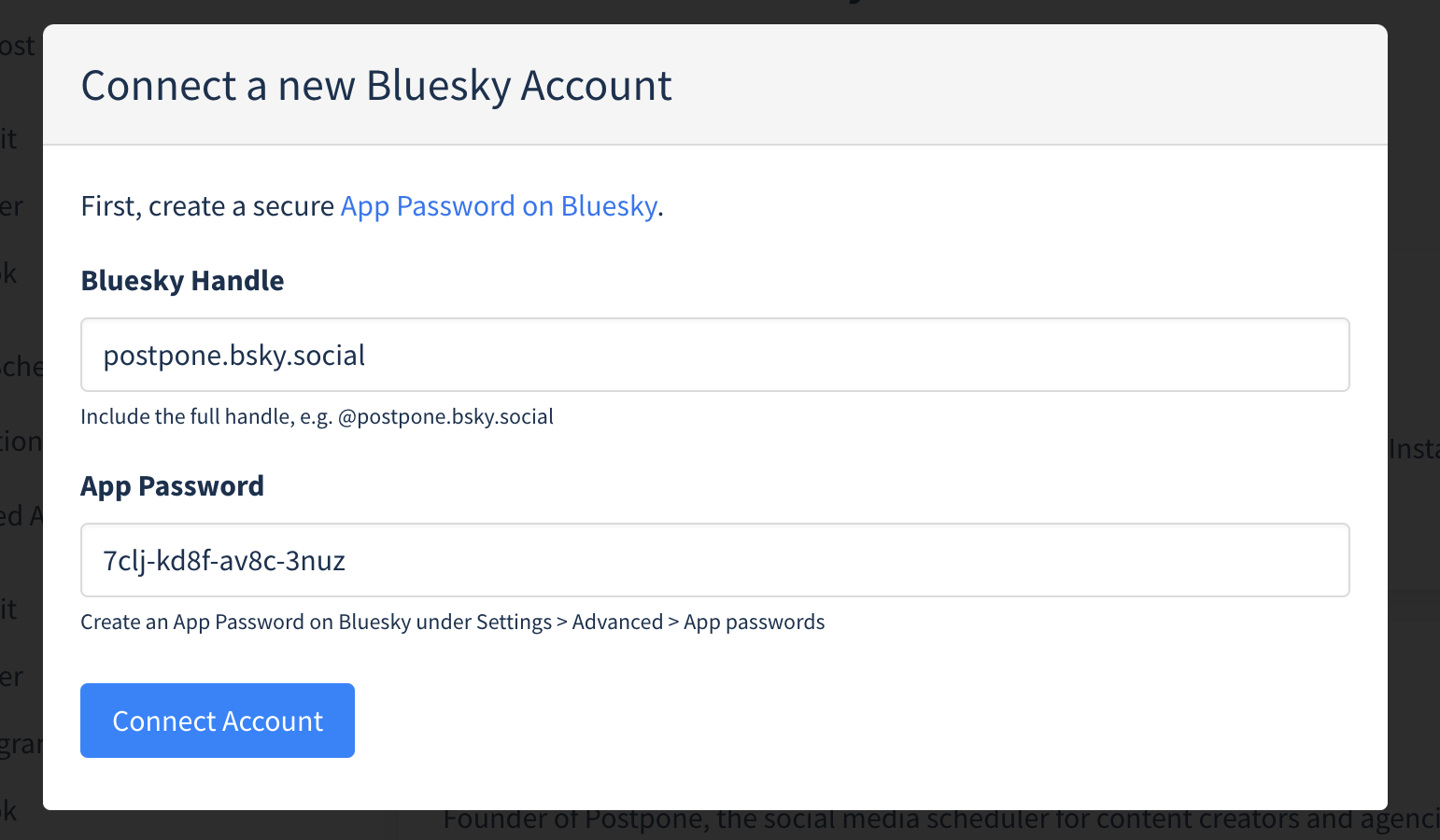
- Enter your full Bluesky handle (e.g., username.bsky.social) and the App Password you generated in Step 1.
- Click Connect Account.
Once your credentials are verified, your Bluesky account will be connected and you can schedule your Bluesky posts and threads!
Postpone supports Bluesky accounts hosted on any Personal Data Server (PDS), not just bsky.social. Simply enter your full handle and Postpone will automatically detect your hosting provider.