

Postpone lets you schedule Feed Posts, Carousels, Reels, and Stories to your Instagram account in advance so that your content is continuously published to your followers.
Feed Posts and Carousels
Instagram Feed Posts (single image or video) and Carousels (multiple images or videos) appear in your followers' feeds.
Carousels can have up to 10 images or videos.
How to Schedule a Feed Post or Carousel
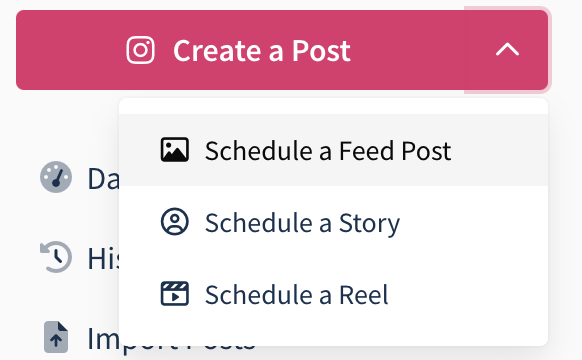
- Click New Post, select your Instagram account, and choose Post under What would you like to post on Instagram?
- Click Add files to select from your Content Library, or drag and drop your images or videos. The preview displays what the post will look like.
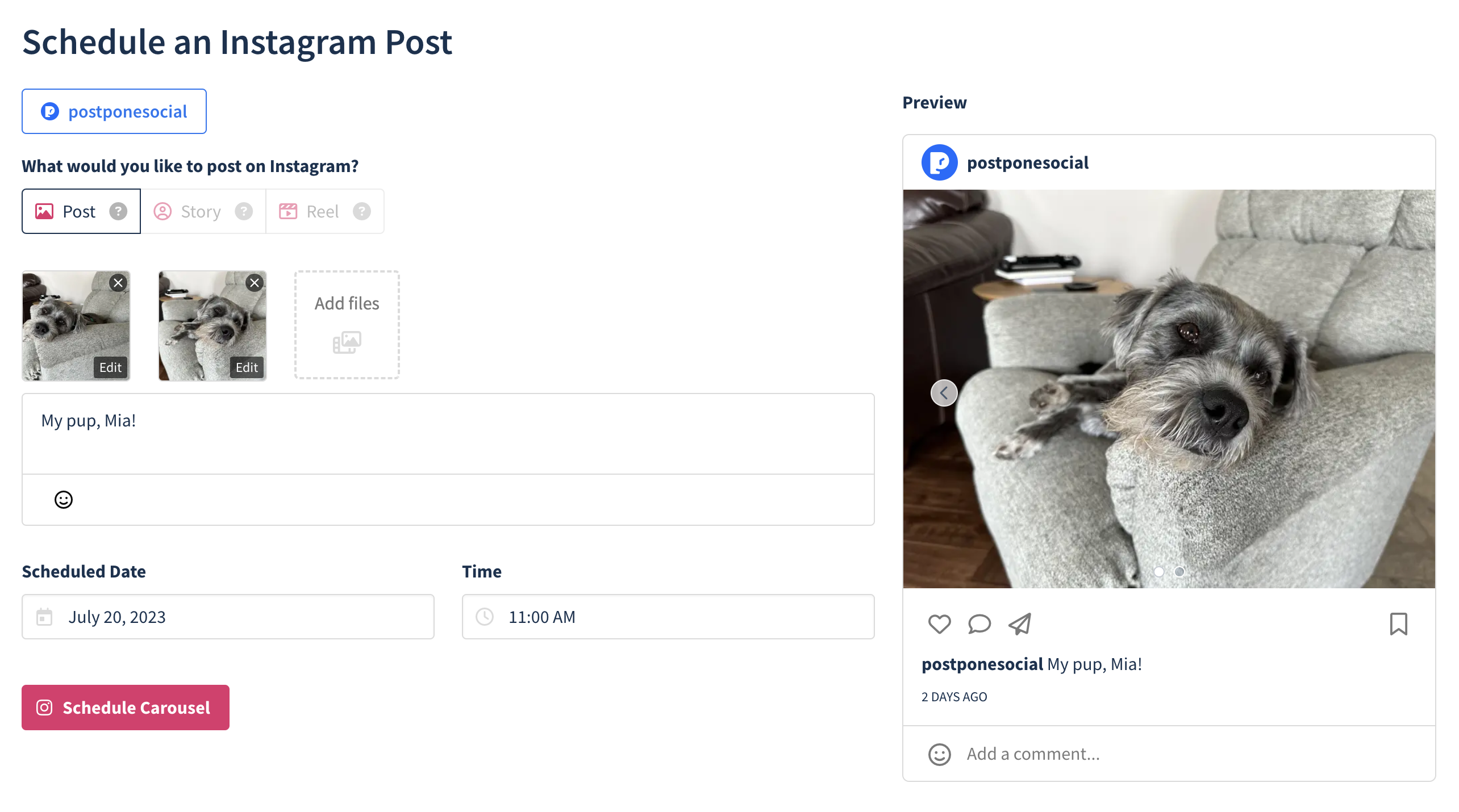
- Choose your desired Scheduled Date.
- Click Schedule Post.
Your Instagram Feed Post is now scheduled. It will be submitted from your account at the scheduled date and time.
Reels
Instagram Reels are videos that appear in your followers' feeds and the Reels tab.
How to Schedule an Instagram Reel
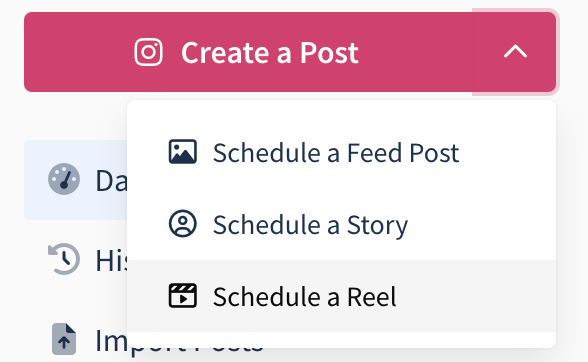
- Click New Post, select your Instagram account, and choose Reel under What would you like to post on Instagram?
- Click Add files to select from your Content Library, or drag and drop your video. The preview displays what the reel will look like.
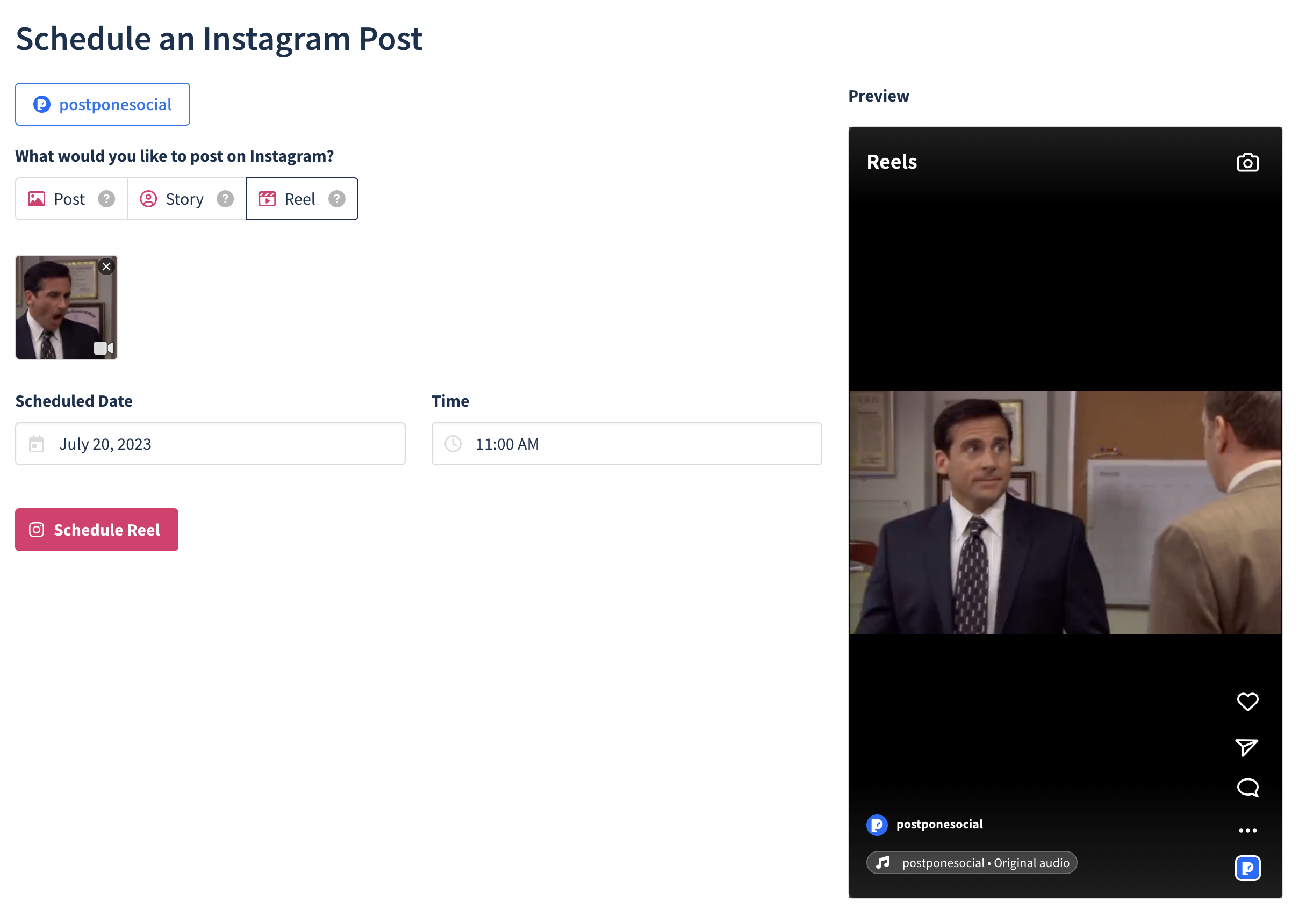
- Choose your desired Scheduled Date.
- Click Schedule Post.
Your Instagram Reel is now scheduled. It will be submitted from your account at the scheduled date and time.
Stories
Instagram Stories allow users to share images or videos that disappear after 24 hours.
How to Schedule an Instagram Story
- Click New Post, select your Instagram account, and choose Story under What would you like to post on Instagram?
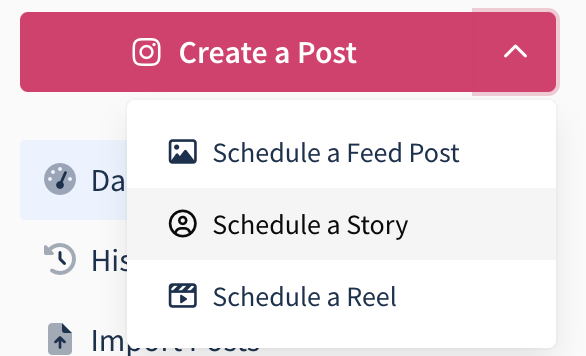
- Click Add files to select from your Content Library, or drag and drop your image or video. A preview displays how it will appear.
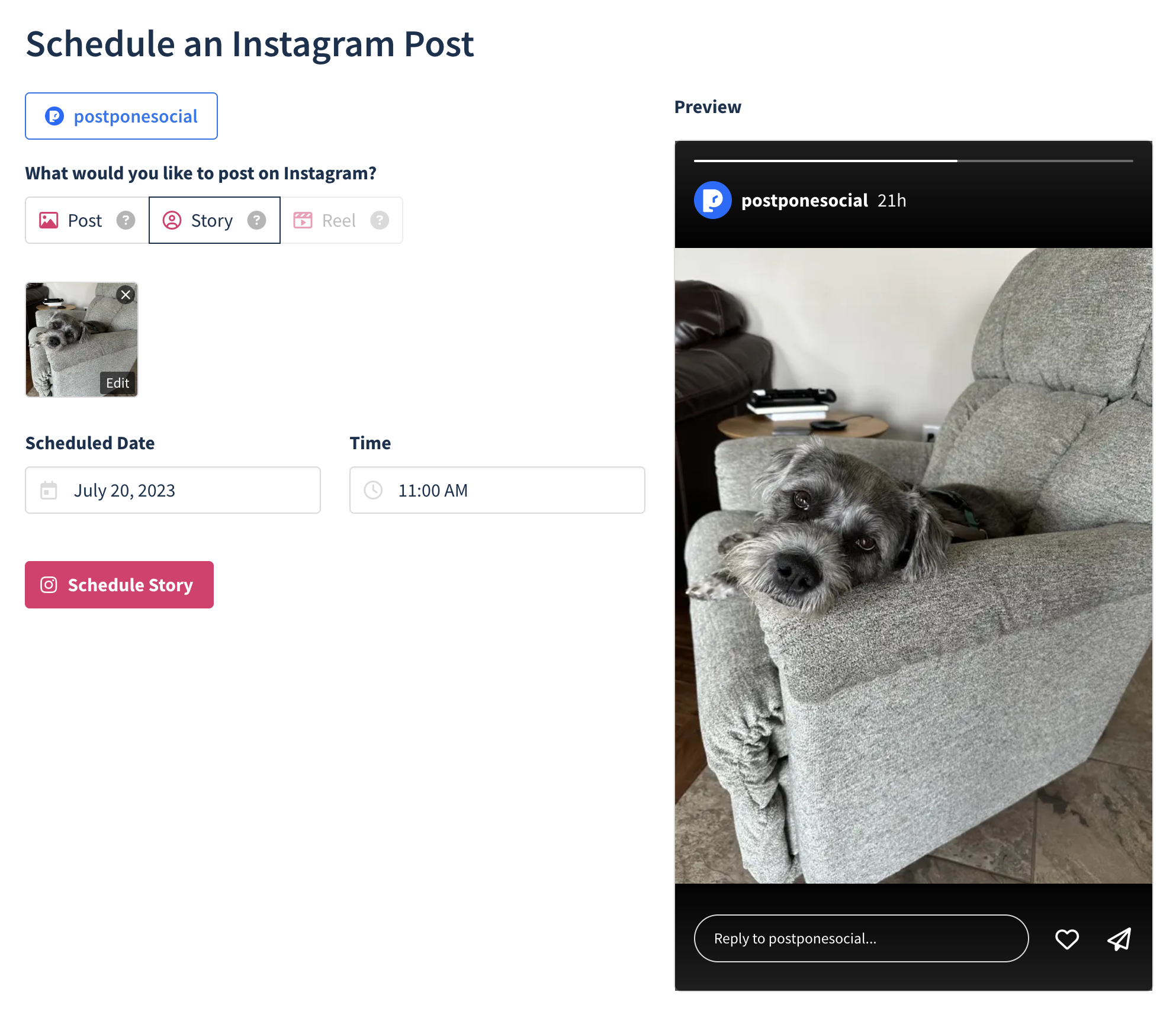
- Choose your desired Scheduled Date.
- Click Schedule Post.
Your Instagram Story is now scheduled. It will be posted automatically from your account at the scheduled date and time.
Supported Features
Everything Postpone supports when scheduling to Instagram:
- Feed posts and carousels — Publish a single image or video, or a carousel of up to 10 images and videos, to your feed.
- Reels — Publish a single vertical video to your Reels tab.
- Stories — Publish an image or video that disappears after 24 hours.
- Share Reels to your main grid — Choose whether a Reel appears only in your Reels grid, or in both your main profile grid and your Reels grid.
- Trial Reels — Publish a Reel to non-followers first so you can test it before your followers see it, then either graduate it yourself in the Instagram app or let Instagram graduate it automatically when it performs well. Requires an account with at least 1,000 followers.
- Cover images — Choose the frame or upload the image shown before your video plays, available for Reels and single-video feed posts. See Cover Images.
- Music on Reels — Attach a track from Instagram's audio catalog to a Reel and mix its volume against your video's own audio. Requires an account connected via Facebook. See Music and Links.
- Music reminder — Note the song you plan to add by hand when a track can't be attached through the API, which switches the post to notification posting.
- Collaborators — Invite up to 3 Instagram accounts to co-author the post so it also appears on their profiles if they accept.
- First comment — Schedule a comment that Postpone submits on your post immediately after it publishes, commonly used for hashtags.
- Alt text — Add a description to each image on a feed post or carousel so screen readers can describe it.
- @mentions — Tag other Instagram accounts by typing
@in your caption. Mentions aren't supported in the first comment. - Notification posting (optional) — Instead of letting Postpone publish the post for you, you can opt into a notification when it's time to post and publish from the Instagram app yourself, which unlocks features Instagram keeps to itself. See Notification Posting.