

Every time an automation triggers, Postpone records a run. The run history lets you see when each automation fired, what triggered it, and whether the resulting posts were created successfully.
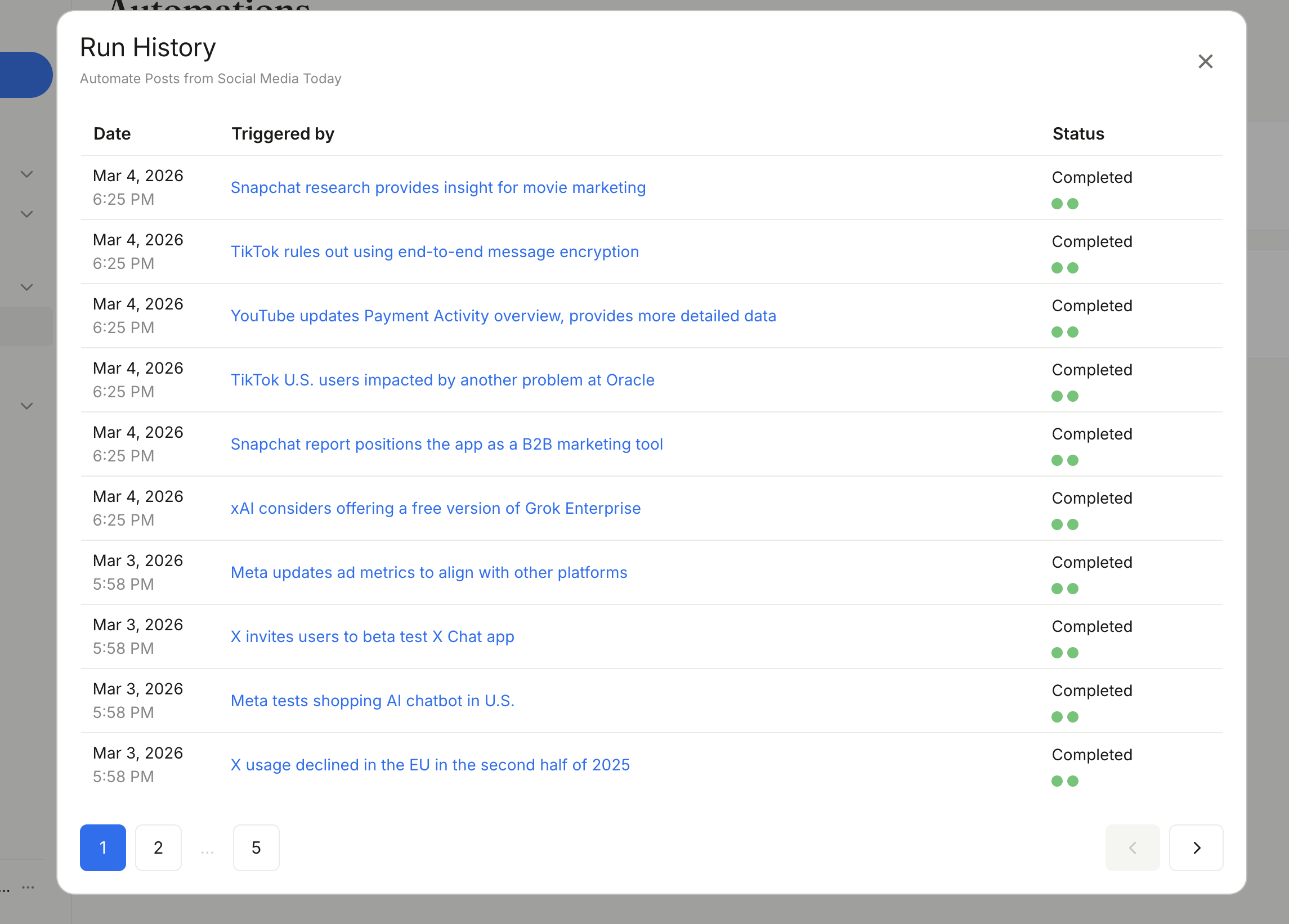
Viewing Run History
- Go to the Automations page.
- Find the automation you want to inspect.
- Click the three-dot menu and select View Runs.
This opens the run history modal, which shows a paginated table of all runs for that automation.
Run Details
Each run shows:
| Column | Description |
|---|---|
| Date | When the automation triggered (date and time). |
| Triggered by | The feed item that triggered the run. If available, the title links to the original content. |
| Status | The overall result of the run. |
Run Statuses
| Status | Meaning |
|---|---|
| Completed | All actions finished successfully. |
| Failed | One or more actions encountered an error. |
| Running | The run is still in progress. |
Action Result Dots
Below each run's status, you'll see small colored dots representing the result of each individual action:
- Green — the action succeeded.
- Red — the action failed.
- Grey — the action was skipped.
Error Details
When a run fails, hover over the question mark icon next to the "Failed" status to see the error message. Common error causes include:
- Expired or disconnected social account tokens.
- Platform rate limits or posting restrictions.
- Invalid post content (e.g., text exceeding character limits).
For help resolving errors, see Troubleshooting.