

AI Assistant helps you go from a blank page to a publish-ready post in seconds. Write from a topic, paste a URL to a blog post, or drop in existing text to reshape it.
Opening AI Assistant
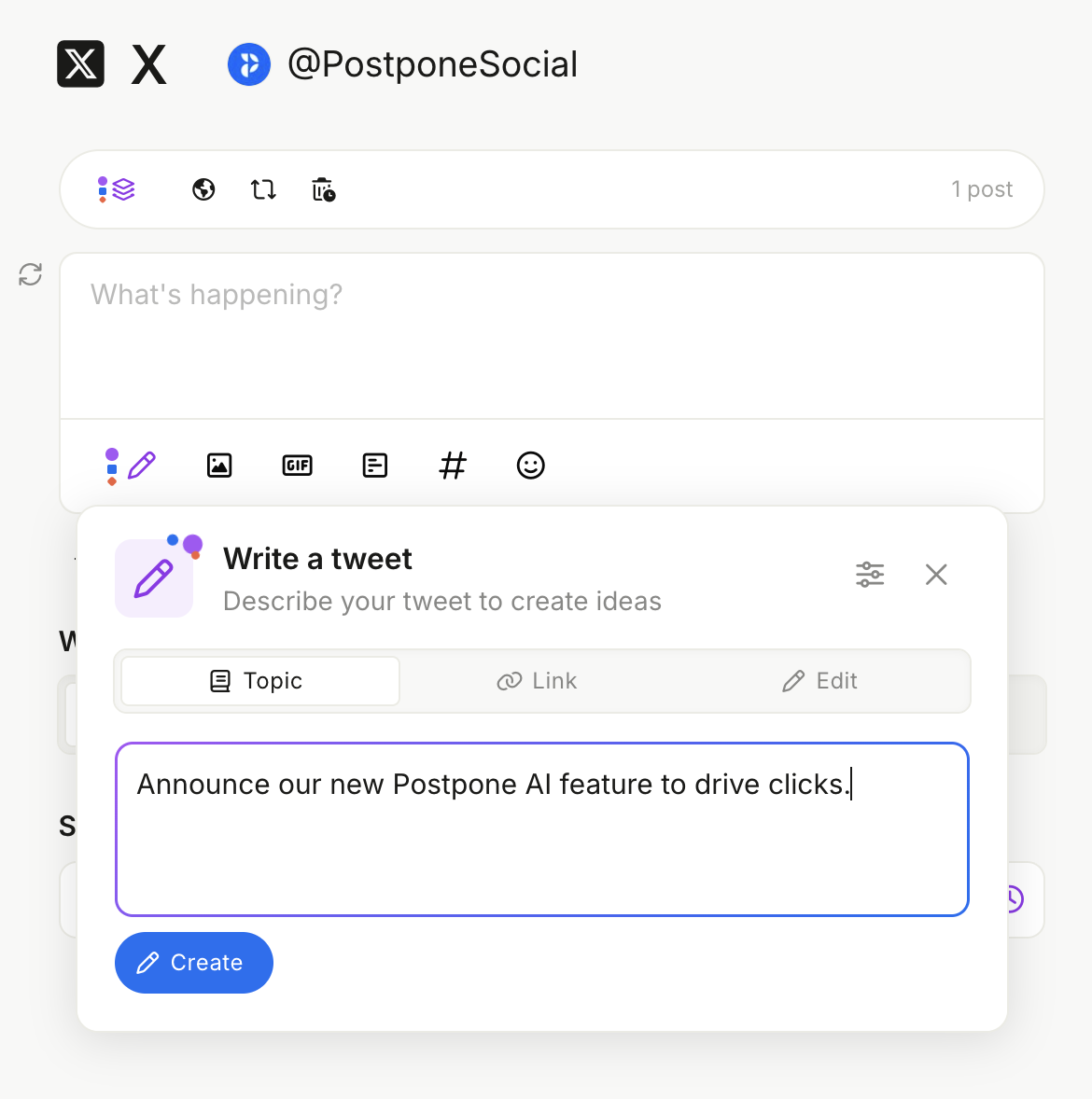
Open any post editor while scheduling a post, then click the AI Assistant button. Three input modes are available:
- Topic — describe what you want to post about in plain language. Best for creating something from scratch.
- Link — paste a blog post or article URL. AI will read the page and write a post promoting or summarizing it.
- Edit — paste existing text you want to transform. Use any of the editing actions below to rewrite, shorten, translate, or adjust the tone.
Writing from a Topic
Type a prompt describing what you want, then click Create.
Example prompts:
"Announce that we just hit 10,000 customers, keep it warm and celebratory"
"Share 3 tips for reducing meeting fatigue for remote teams"
"Promote our Black Friday sale — 40% off all plans, ends Sunday"
Be specific. The more context you give — audience, tone, goal — the more useful the first draft will be.
Writing from a URL
Switch to Link mode and paste any public article or blog post URL. Add optional extra details in the text field below if you want the AI to focus on a specific angle or add context.
This is useful for turning long-form content into platform-ready posts without summarizing it yourself.
Editing a Draft
Use Edit mode to improve on your posts. Postpone will auto-fill the text of our existing post, or you can type in a new post to edit.
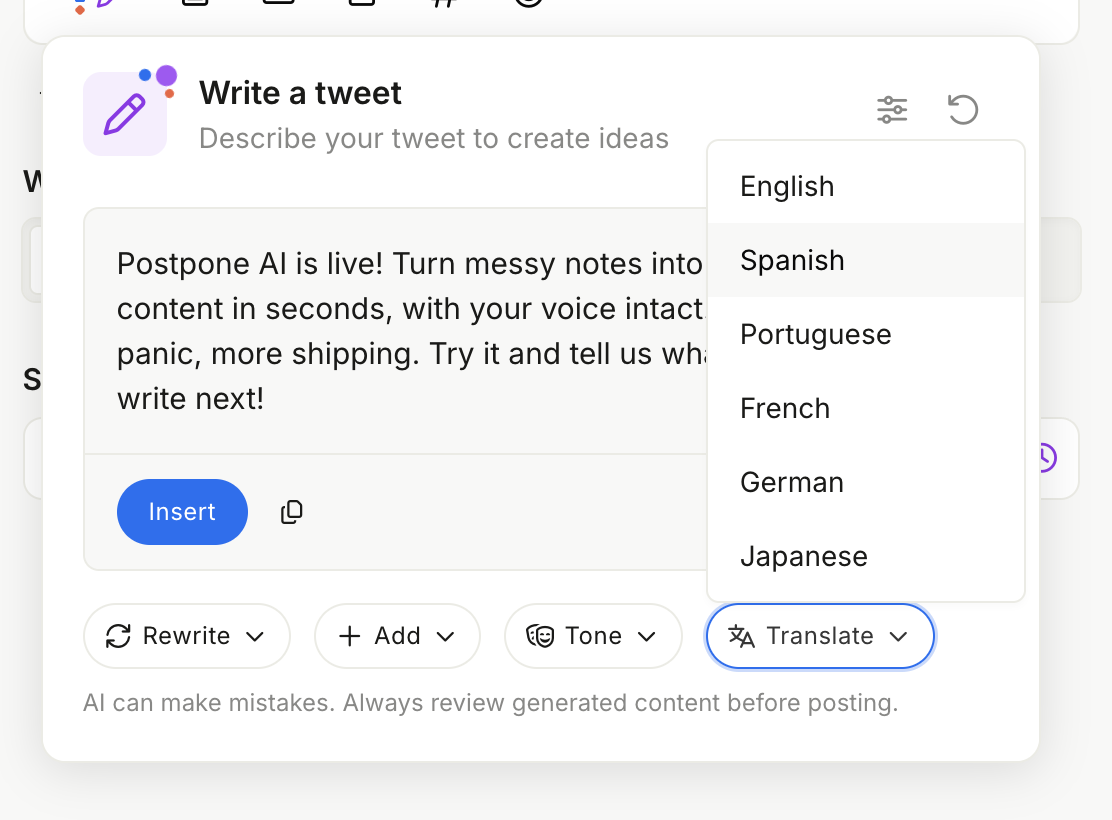
Four dropdown menus give you one-click editing actions:
Rewrite
- Improve — polish writing, fix awkward phrasing, and improve overall clarity.
- Format — add structure with line breaks and spacing, useful for long posts that need visual breathing room.
- Longer — expand the post with more detail and context while preserving the original intent.
- Shorter — condense to the key point. Good for hitting platform character limits.
- Simplify — swap complex words for plain language without losing meaning.
- Proofread — correct grammar and spelling errors.
Add
- Hook — prepend an attention-grabbing opening line to stop the scroll.
- CTA — append a call-to-action that prompts the reader to follow, click, or reply.
- Question — add an engagement-driving question to invite replies and comments.
- Emoji — sprinkle in relevant emojis to add personality.
- Hashtags — add relevant hashtags based on the post topic.
Tone
Change how the post sounds without changing what it says:
- Confident — assertive and direct.
- Friendly — warmer and more approachable.
- Softer — gentler and more tactful.
- Casual — relaxed and conversational.
- Formal — professional and polished.
- Spicier — bold and provocative.
Translate
Translate the post to another language: English, Spanish, Portuguese, French, German, or Japanese.
Reviewing the Output
After generating, AI Assistant shows you the result in a preview panel. From there you can:
- Insert — push the draft directly into the editor
- Copy — copy the text to your clipboard
- Remove hashtags or remove emojis — strip those out with one click if they aren't a good fit
- Navigate results — each action adds a new version to the history; use the arrows to compare and go back
The character count is shown for each result so you can quickly spot if a draft is too long for the selected platform.