

Thread mode generates a full multi-post thread from a single topic prompt. Use it to write educational breakdowns, story-driven content, or detailed takes without writing every post by hand.
Enabling Thread Mode
Open a thread-capable post editor (Twitter/X, Bluesky, Threads, Mastodon), then click AI Assistant in the thread action bar.
Choosing a Thread Length
Before generating, pick a length that matches your goal:
- Auto (Default) — AI decides the best length for your topic. Good starting point for most prompts.
- 2 posts — Post + Link — a short hook post followed by a link. Ideal for driving traffic to an article or landing page.
- 3–5 posts — Quick — a compact thread. Good for tips lists, quick takes, or announcements with a little context.
- 5–8 posts — Standard — the sweet spot for educational threads, step-by-step breakdowns, or stories with a clear arc.
- 8–12 posts — Deep Dive — long-form content for detailed explainers, case studies, or in-depth frameworks.
Writing from a Topic
Enter your topic in the prompt field and click Write Thread. AI generates all posts at once.
Example prompts:
"5 reasons most people fail at building a morning routine — and what to do instead"
"Explain the concept of compound interest as if you're talking to a 25-year-old who just started investing"
"Thread announcing our new product launch — highlight the problem it solves, the key features, and end with a CTA"
The more specific the prompt, the better the output. Include your audience, the key points you want to hit, and any tone guidance.
Writing from a Link
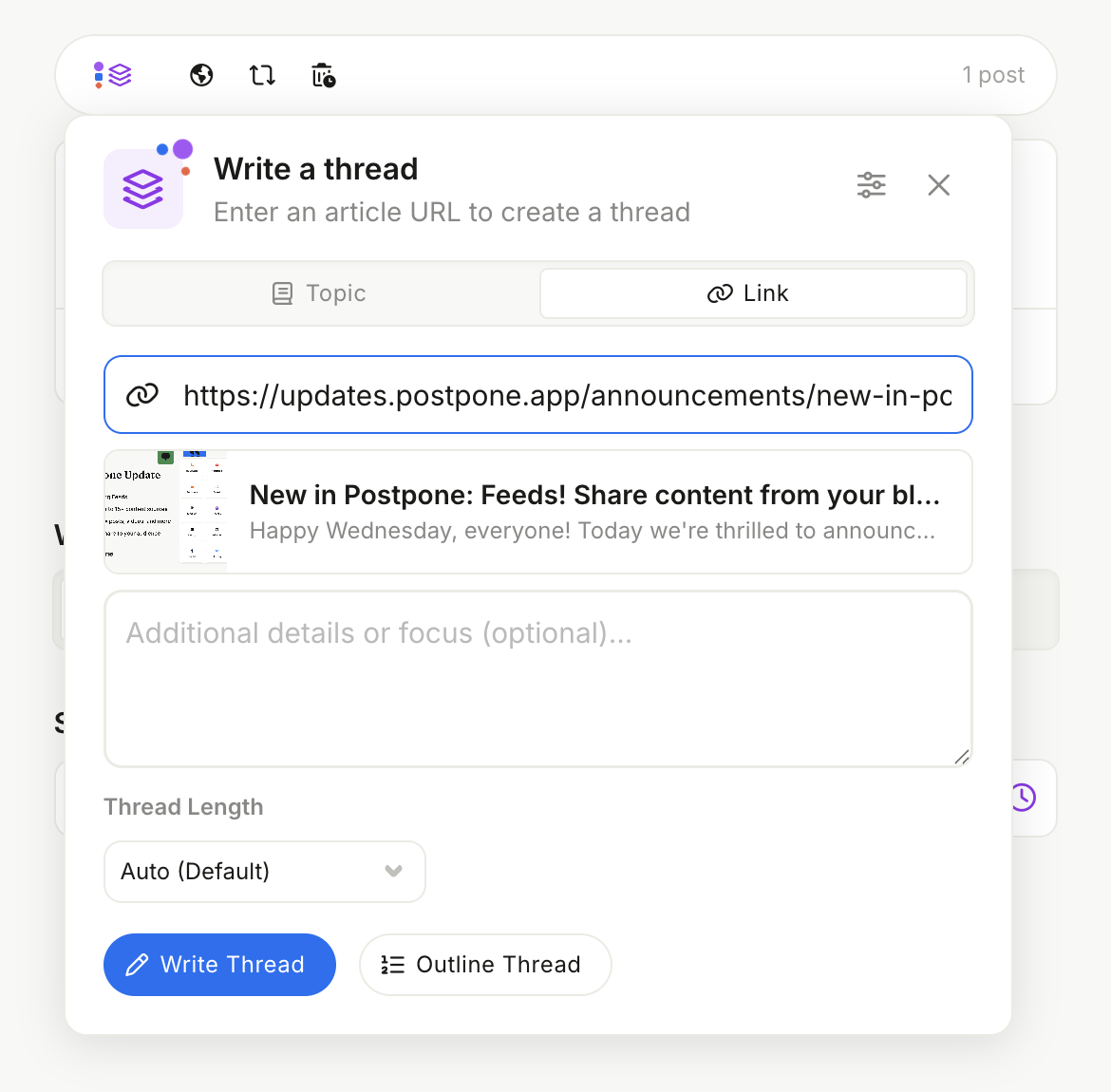
Switch to Link mode and paste any public article or blog post URL. This is where link mode really shines — instead of generating a single post, AI reads the full article and turns it into a structured multi-post thread that covers the content in depth.
A few ways to use this:
- Repurpose a blog post — turn a long-form article into a thread that walks through the key points one by one.
- Summarize a report or study — break findings into digestible posts with a takeaway per thread entry.
- Promote content with context — go beyond a link drop by giving your audience the highlights in the thread itself.
Add optional details in the text field below the URL if you want to steer the angle — for example, which section to focus on, who the audience is, or what tone to use.
Using Outline Mode for More Control (recommended)
If you want to shape the structure before writing, click Outline Thread instead of Write Thread.
Generate an outline
AI creates a numbered list of post topics based on your prompt. Each item represents one post in the thread.
Edit the outline
Click into any item to rename it. Add, remove, or reorder posts using the controls on each row.
Write from the outline
When the structure looks right, click Write Thread. AI generates each post based on the outline you finalized.
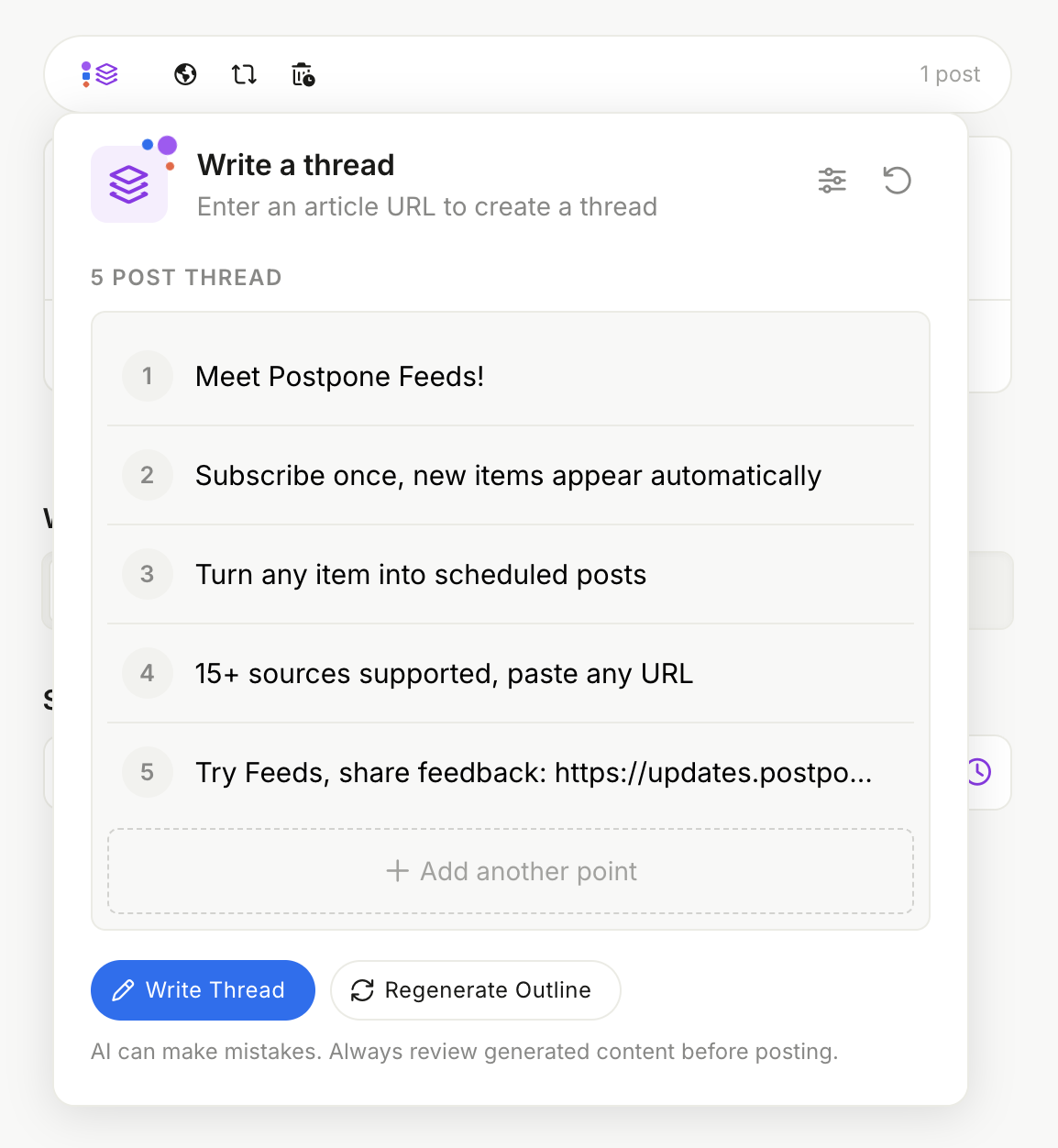
This is the best approach when you have a clear idea of what each post should cover but want AI to do the actual writing.
Reviewing the Thread
Once generated, each post appears in a numbered preview. Check the character count shown under each post — for platforms with strict limits like Twitter/X, this tells you immediately if any post needs trimming.
From the preview you can:
- Insert — adds all posts to the thread editor at once
- Regenerate — generates a completely new version of the thread from the same prompt