

The reviews and approvals workflow lets teams review and approve posts before they are published. Team members who require approval submit their posts for review, and approvers can approve the content or request changes.
Setting Up Approvals
Before anyone can submit posts for review, you'll need to configure the right permissions for your team members.
Open Team Settings
Navigate to Settings > Team and select Permissions next to the team member you want to configure.
Assign approval permissions
Configure the following permissions based on each person's role:
- Requires post approval — Posts from this team member must be approved before they publish. Assign this to anyone whose content needs review.
- Can approve posts — This team member can review and approve (or reject) posts from others. Assign this to editors, managers, or account owners who are responsible for sign-off.
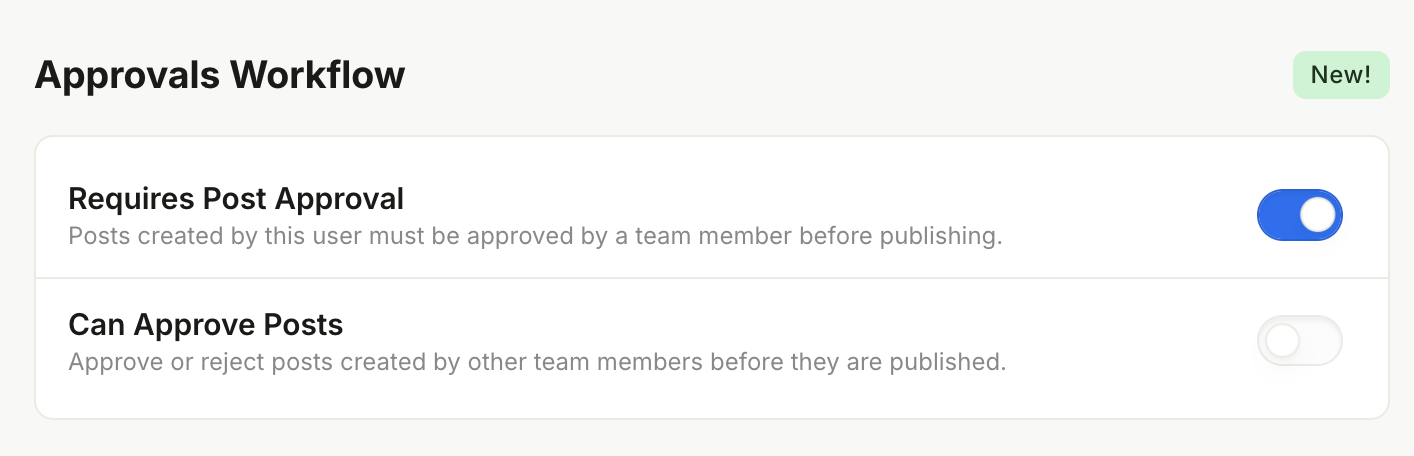
Optionally require approval per social account
You can also require approval for all posts to a specific social account, regardless of who created them. Go to Settings > Social Accounts and enable the Require approval for posts to this account toggle on any account.
Submitting Posts for Review
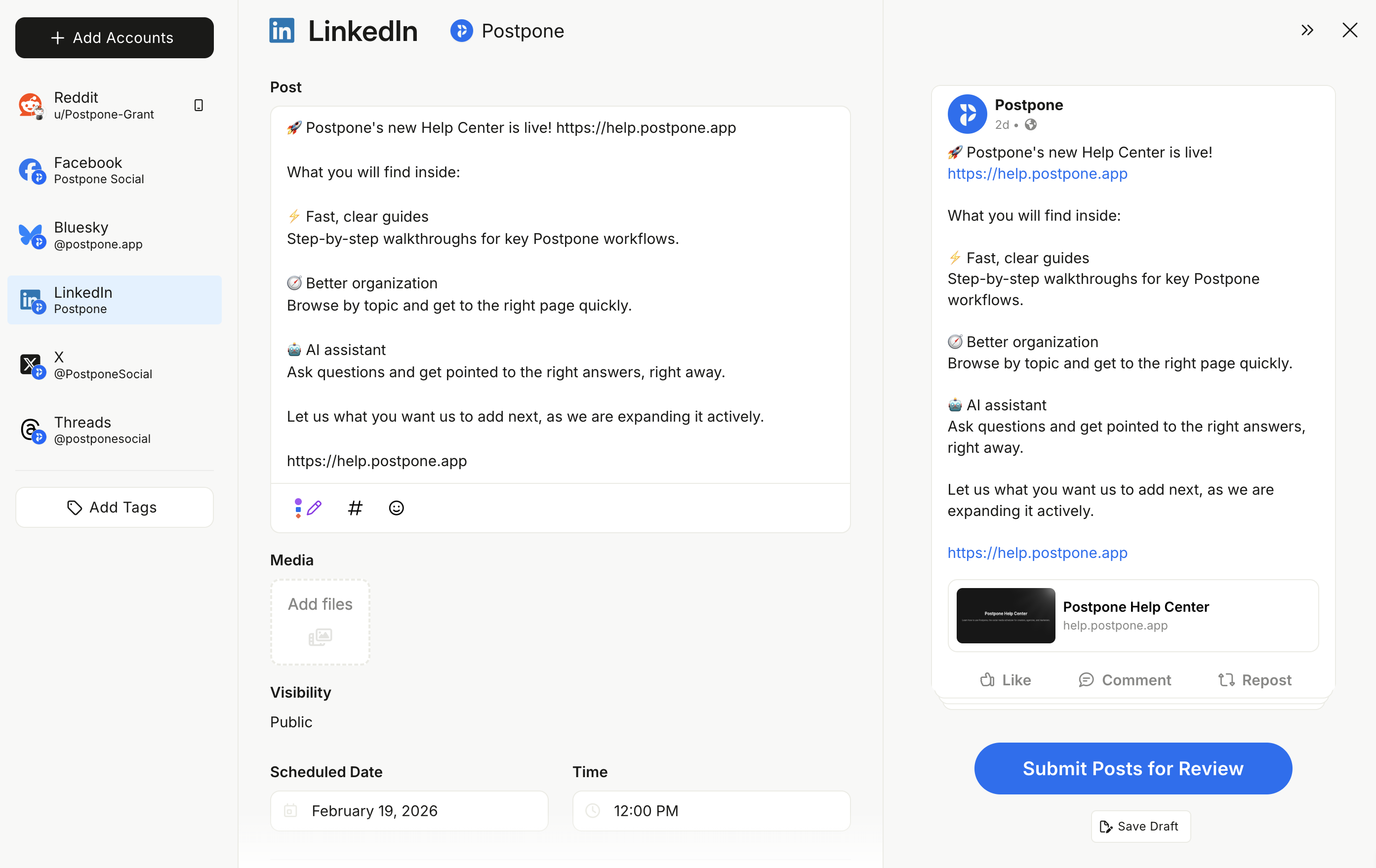
Once a team member has the requires post approval permission, their posts won't publish directly. Instead, they'll submit a review request.
You can submit for review while creating a post, or later from the Drafts view by selecting one or more drafts. Either way, you'll have the option to add a description to give your reviewer context — what to look for, campaign background, or anything else that's helpful.
Once submitted, the posts are grouped into a review request and their status changes to In Review. Your reviewer will be notified that content is waiting for their approval. Posts in review also appear on the calendar in Posts > Scheduled, so their place in the schedule remains visible while awaiting approval.
Reviewing Posts
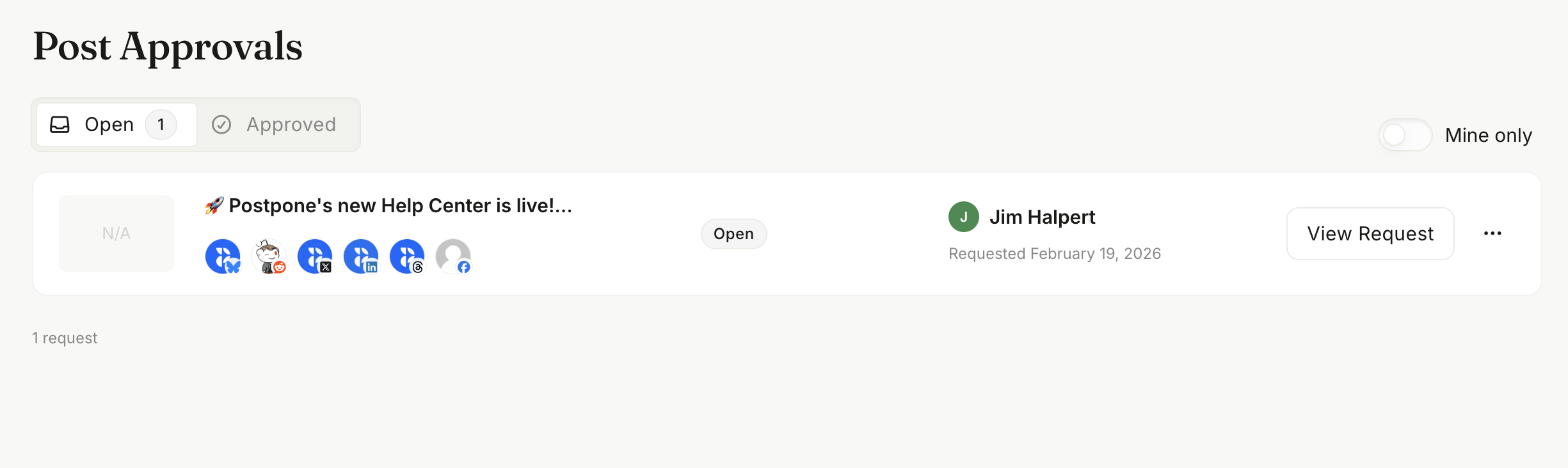
Approvers can see all pending review requests on the Approvals page.
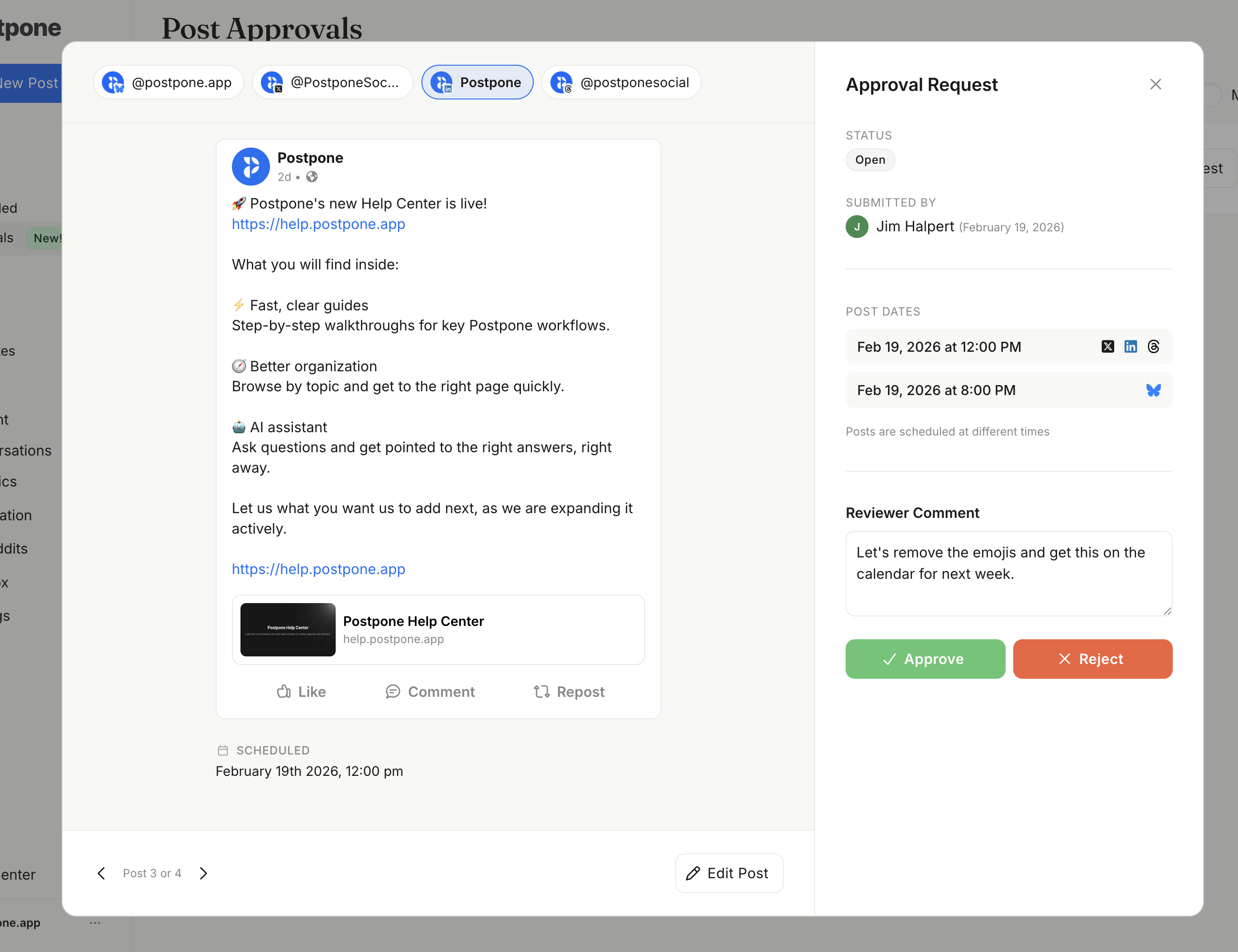
When you open a review request, you can preview each post exactly as it will appear when published, edit posts directly if minor tweaks are needed, switch between accounts when a request spans multiple social accounts, and view post metadata like auto-removal and visibility settings.
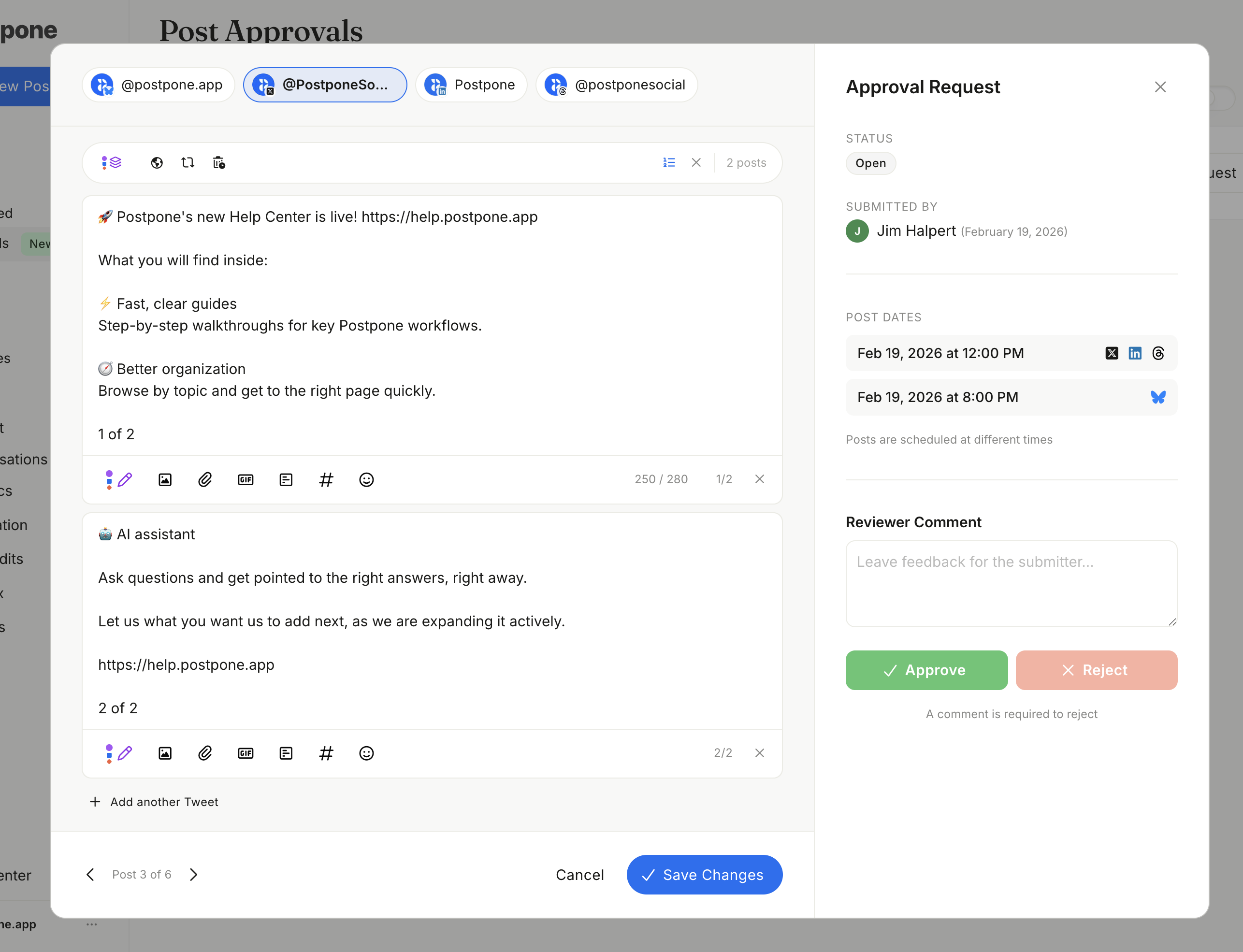
After reviewing, choose one of three actions:
- Approve — All posts in the request are approved and will publish at their scheduled times.
- Request changes — Add a message explaining what needs to be revised. The creator is notified and the posts return to them for editing.
- Cancel — Cancel the request entirely. Posts revert to draft status.
Resubmitting After Changes
When a reviewer requests changes, the post creator is notified by email or push notification (based on their notification settings). They can read the reviewer's feedback, make the necessary edits, and click Resubmit to send the updated posts back for another round of review.
Notifications
Postpone sends notifications to keep both sides of the workflow in the loop:
- Approvers are notified when a team member submits posts that need their review.
- Creators are notified when a reviewer requests changes on their submission.
You can configure these under Settings > Notifications — both email and push notifications are supported.