

Template variables let you insert dynamic content from triggers into your post templates. When an automation runs, each variable is replaced with the actual value from the feed item that triggered it.
Available Variables
| Variable | Description | Example Value |
|---|---|---|
{{ trigger.title }} | The title of the feed item | How I grew my newsletter to 10k subscribers |
{{ trigger.link }} | The URL of the feed item | https://example.com/blog/entry |
{{ trigger.summary }} | A short preview or excerpt | A short preview of the article content |
{{ trigger.content }} | The full text content of the item | The full text content of the article. Note: many feeds do not provide full text content. |
{{ trigger.author }} | The author's name | Jane Doe |
Not all feed items include every field. If a variable references a field that doesn't exist in a feed item, the variable placeholder is left as-is in the post.
Using Variables in Templates
Write your post template as you normally would, and insert variables wherever you want dynamic content. For example:
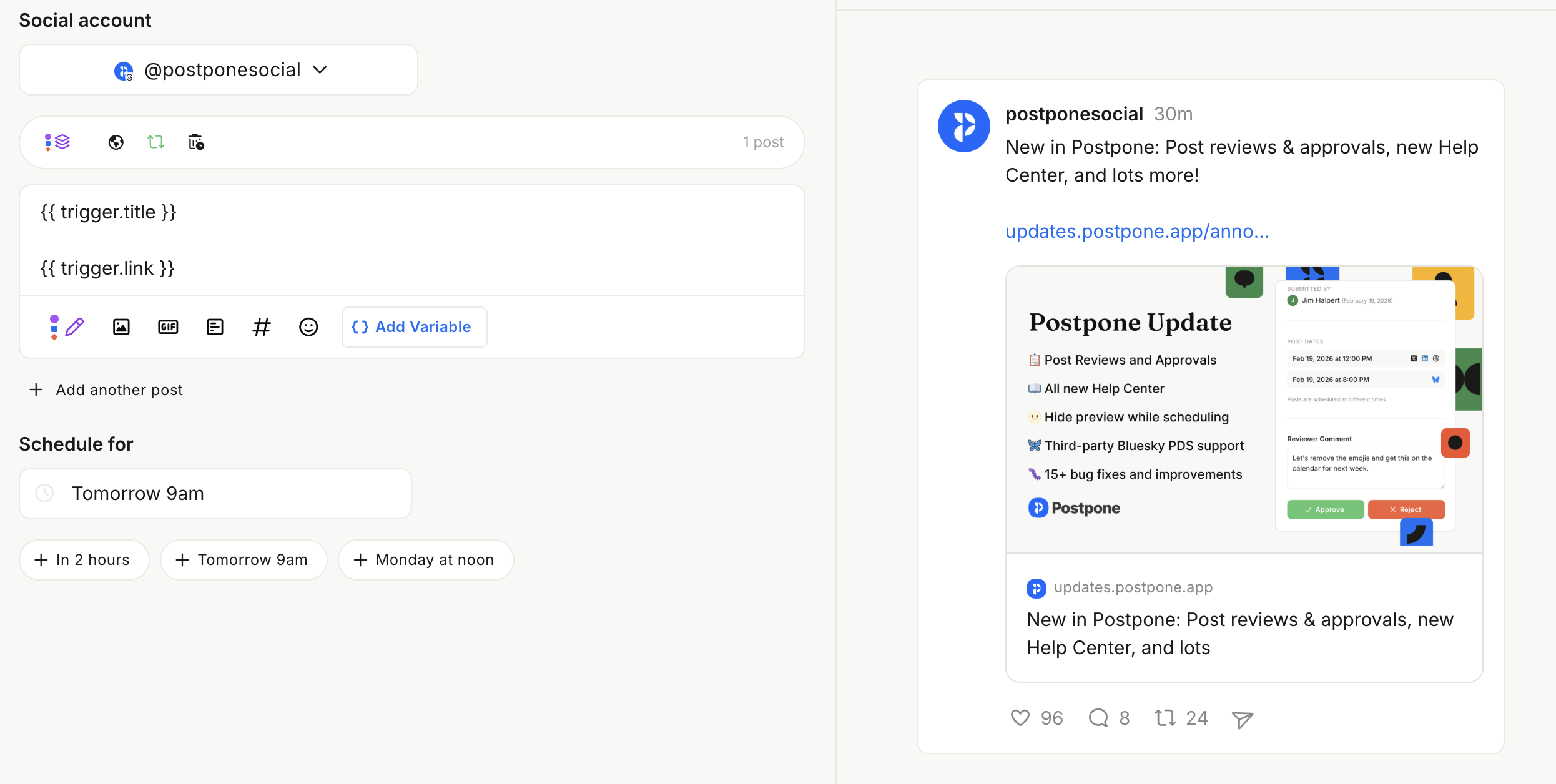
{{ trigger.title }}
Read it now 👉 {{ trigger.link }}
When this automation triggers for a blog post titled "How I grew my newsletter to 10k subscribers", the resulting post would be:
How I grew my newsletter to 10k subscribers
Read it now 👉 https://example.com/blog/entry
The following example shows a post template with variables, plus a preview of what posts will look like as new feed items arrive:
Inserting Variables
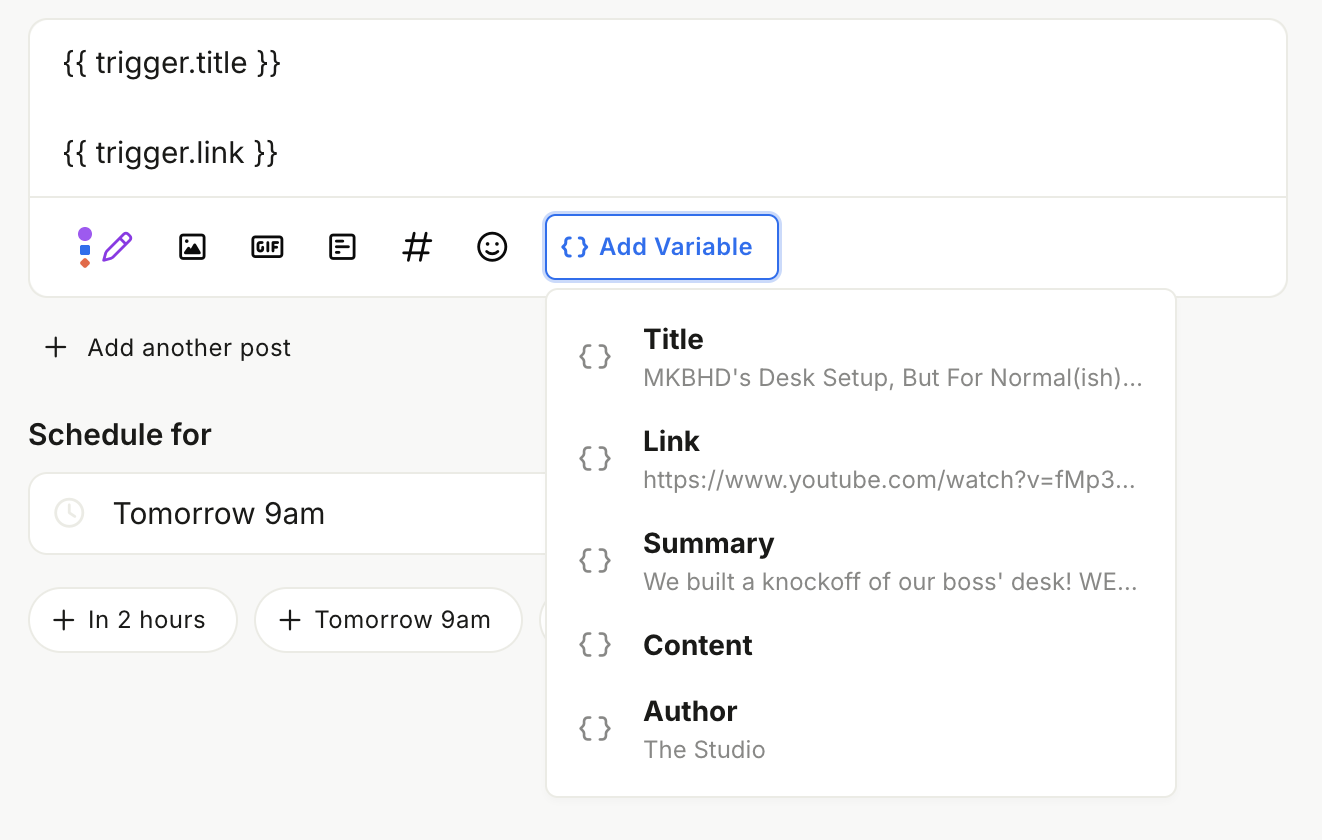
There are two ways to enter trigger variables in your post templates:
- Use the
{keyboard shortcut to open the variable picker. - Select Add Variable.
These show all available variables with example values from your feed, so you can see exactly what will be inserted.
Select a variable from the picker to insert it at your cursor position.
Live Preview
The action editor includes a preview panel on the right side that shows how your post will look with real data. The preview uses the most recent item from your connected feed (or sample data if the feed is new) to render the template variables.
This lets you see the final result before saving your automation.
Platform-Specific Considerations
Template variables work across all supported platforms, but keep in mind:
- Reddit — The post title field is separate from the body. Use
{{ trigger.title }}in the title field and other variables in the body. - X/Twitter, Bluesky, Threads, Mastodon — These platforms use threaded posts. Variables can be used in any thread item.
- LinkedIn, Facebook — Variables can be used in the post text field.
Tips
- Keep it concise. The
{{ trigger.summary }}variable is usually better than{{ trigger.content }}for social posts, since full article content may exceed character limits. - Always include a link. Use
{{ trigger.link }}to drive traffic back to the original content. - Check the preview. The live preview helps you catch formatting issues before the automation runs.