

Automations let you automatically create social media posts whenever new content appears in a feed. Instead of manually creating a post every time you publish a blog article, release a podcast episode, or upload a YouTube video, Postpone watches your feeds and handles it for you.
How Automations Work
Every automation has two parts:
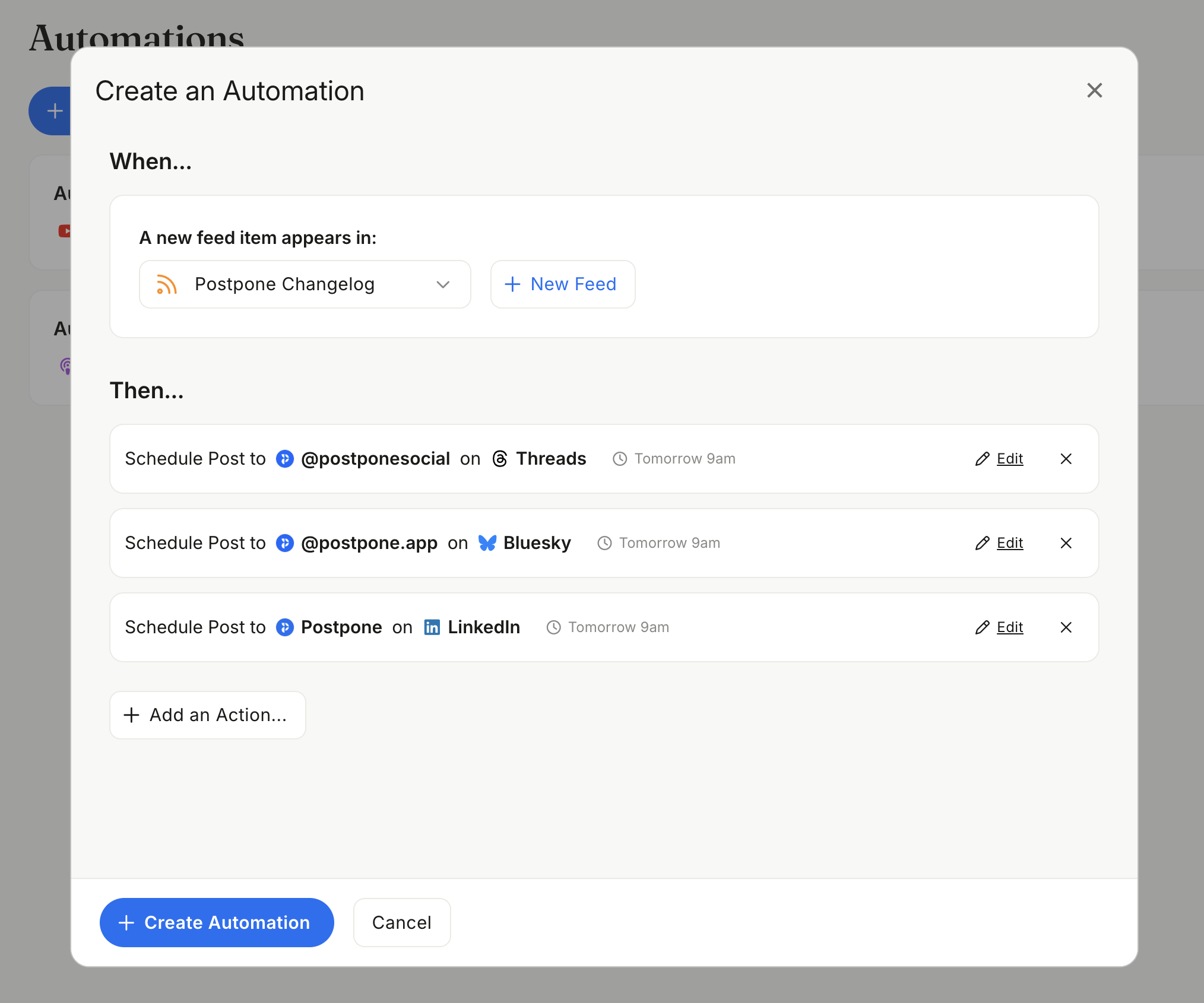
- Trigger — the event that starts the automation. Currently, the supported trigger is New Feed Item: when a new item appears in a connected feed.
- Actions — what happens when the trigger fires. Each action creates a post on one of your connected social accounts.
You can add multiple actions to a single automation. For example, one automation could draft a post on X/Twitter, schedule a post on LinkedIn, and immediately publish to Bluesky — all from a single blog post in your RSS feed.
Supported Platforms
Automations can create posts on these platforms:
- X/Twitter
- Bluesky
- Threads
- Mastodon
Instagram, TikTok, YouTube, Pinterest, and Tumblr are not currently supported for automations.
Creating an Automation
- Go to the Automations page.
- Click Create Automation.
- In the When section, select an existing feed or create a new one. This is the trigger — your automation will run whenever a new item appears in this feed.
- In the Then section, click Add an Action and choose what should happen: draft a post, schedule it, or submit it immediately.
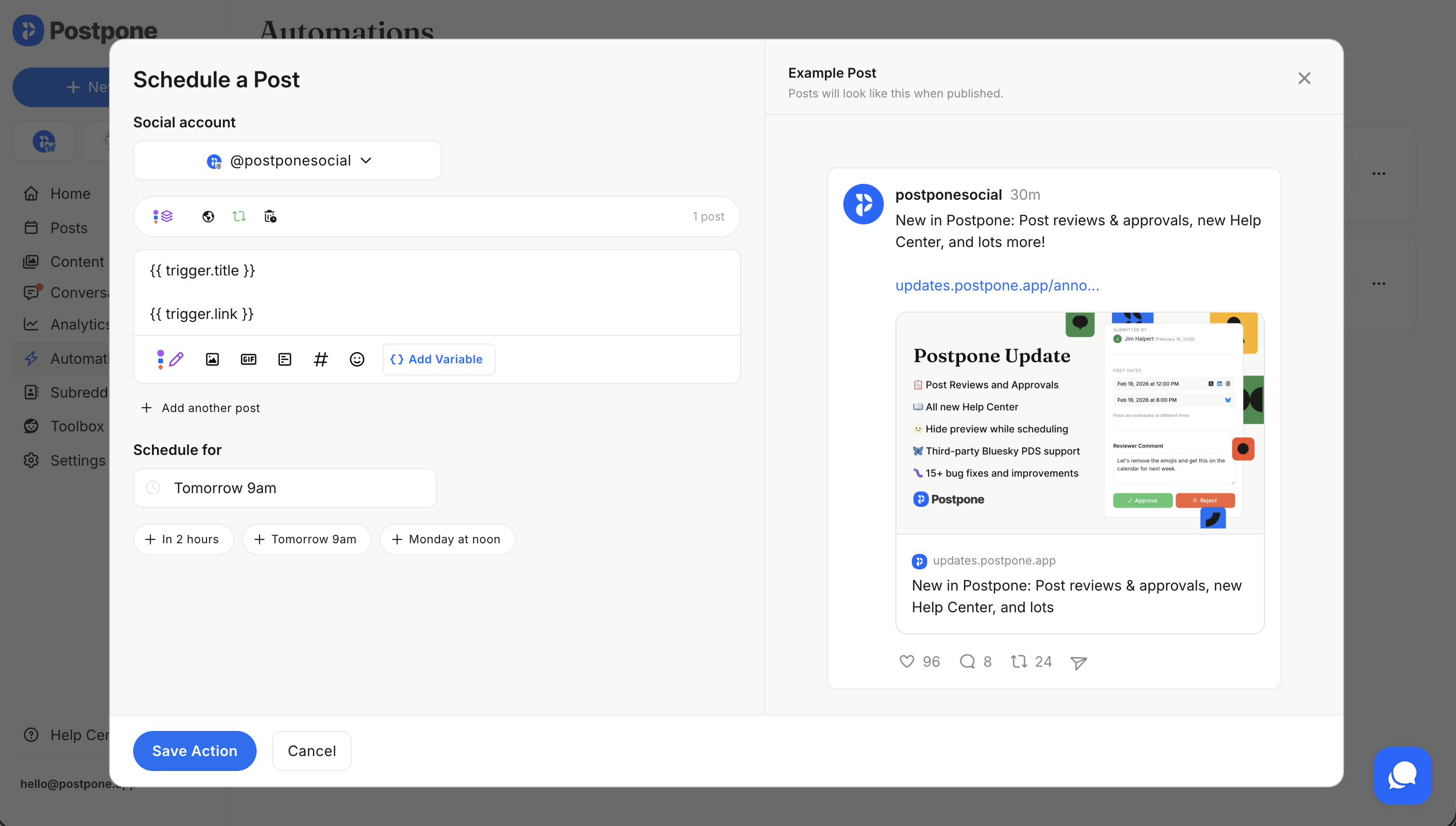
- Configure each action by selecting a social account, writing a post template with template variables, and (for scheduled posts) setting a scheduling expression.
- Click Create Automation to save.
Action Types
| Action | Description |
|---|---|
| Draft a Post | Creates a draft for you to review before publishing. |
| Schedule a Post | Queues the post for a future time (e.g., "Tomorrow 9am"). |
| Submit a Post | Publishes the post immediately when the trigger fires. |
See Actions for details on each action type.
Managing Automations
From the Automations page you can:
- Enable or disable an automation without deleting it.
- Edit an automation to change the feed, actions, or templates.
- View run history to see when the automation has triggered and whether posts were created successfully.
- Delete an automation you no longer need.