

When an automation triggers, it runs one or more actions. Each action creates a post on a specific social account using a post template you configure.
Action Types
Draft a Post
Creates a new draft post from your template. The post appears in your Drafts list for you to review and manually publish or schedule later.
This is useful when you want to review or customize each post before it goes live.
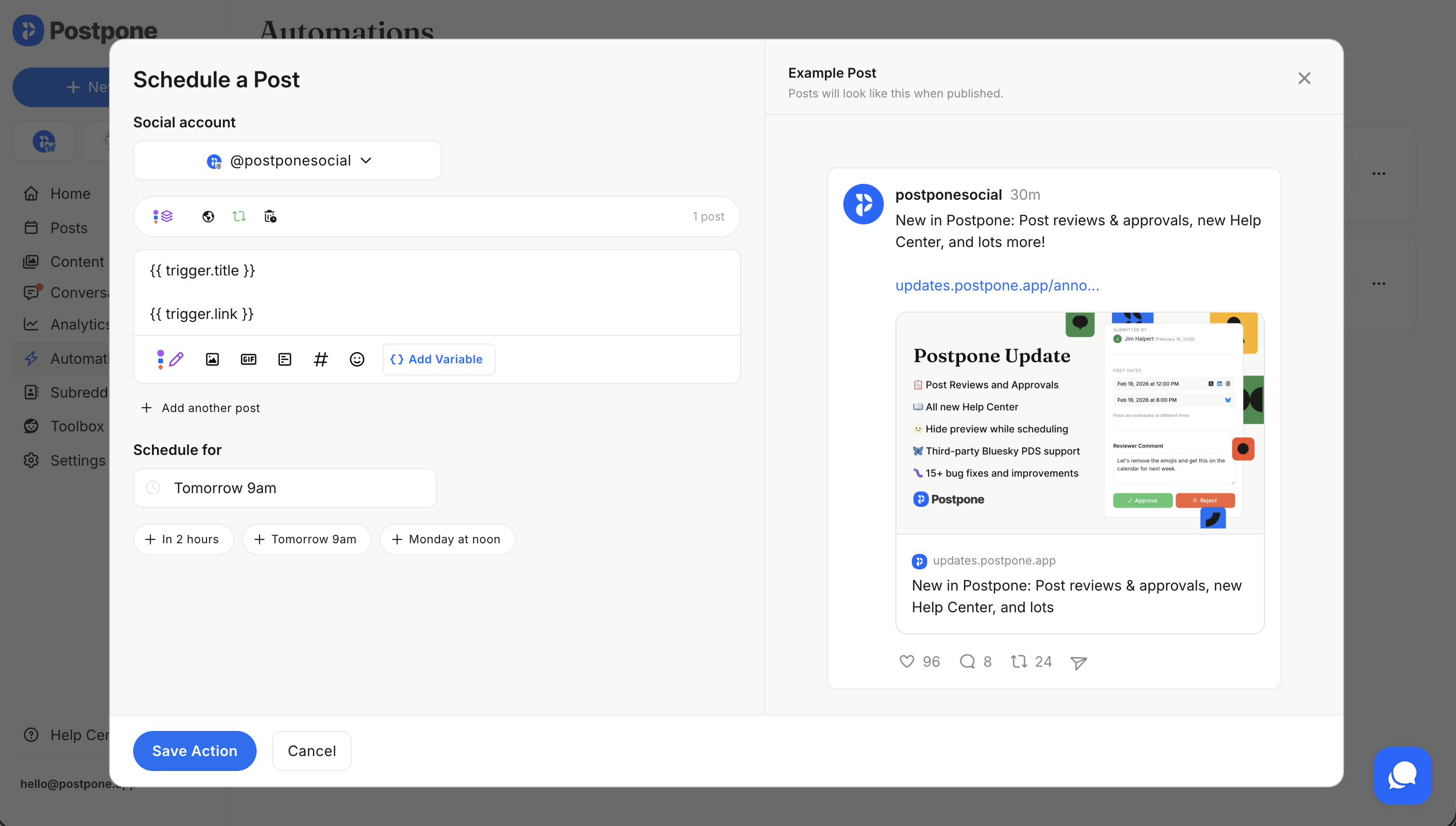
Schedule a Post
Queues the post to be published at a future time. You specify when using a natural-language scheduling expression like:
- ✅
In 2 hoursor+2h - ✅
Tomorrow 9amorTomorrow at 3:30 pm - ✅
Monday at noon
The expression is interpreted relative to when the automation triggers. For example, if a new feed item appears on Wednesday at 3pm and the expression is "Tomorrow 9am", the post will be scheduled for Thursday at 9am.
The following scheduling expression formats are not supported:
- ❌
Next Monday- ✅ Use
Mondayinstead
- ✅ Use
- ❌
This weekendornext weekend- ✅ Use
Saturdayinstead
- ✅ Use
- ❌
3 days from now- ✅ Use
in 3 daysor+3dinstead
- ✅ Use
Submit a Post
Publishes the post immediately when the trigger fires. There is no delay — as soon as a new feed item is detected, the post is created and submitted.
Adding Multiple Actions
A single automation can have multiple actions. Each action targets one social account, so you can post to several platforms from a single trigger.
For example, when a new blog post appears in your RSS feed:
- Action 1: Submit a post to X/Twitter immediately.
- Action 2: Schedule a post on LinkedIn for "Tomorrow 9am".
- Action 3: Draft a post on Reddit for manual review.
To add an action, click Add an Action in the automation editor and choose the action type. Then select a social account, write a post template using template variables, and configure any additional options.
Configuring an Action
Each action has:
- Social account — the connected account to post to.
- Post template — the content of the post, which can include template variables that get replaced with feed item data.
- Scheduling expression — (Schedule a Post only) when to publish relative to the trigger time.
The post template uses the same editor as regular post creation, so all platform-specific options are available (e.g., subreddit selection for Reddit, thread items for X/Twitter).
Enabling and Disabling Automations
You can enable or disable an automation at any time from the Automations page without deleting it. Disabled automations will not trigger, even when new feed items appear. This is useful for pausing an automation temporarily — for example, during a holiday or content break.
To toggle an automation's status, click the three-dot menu on the automation and select Enable or Disable.